
 Catppuccin for SDDM



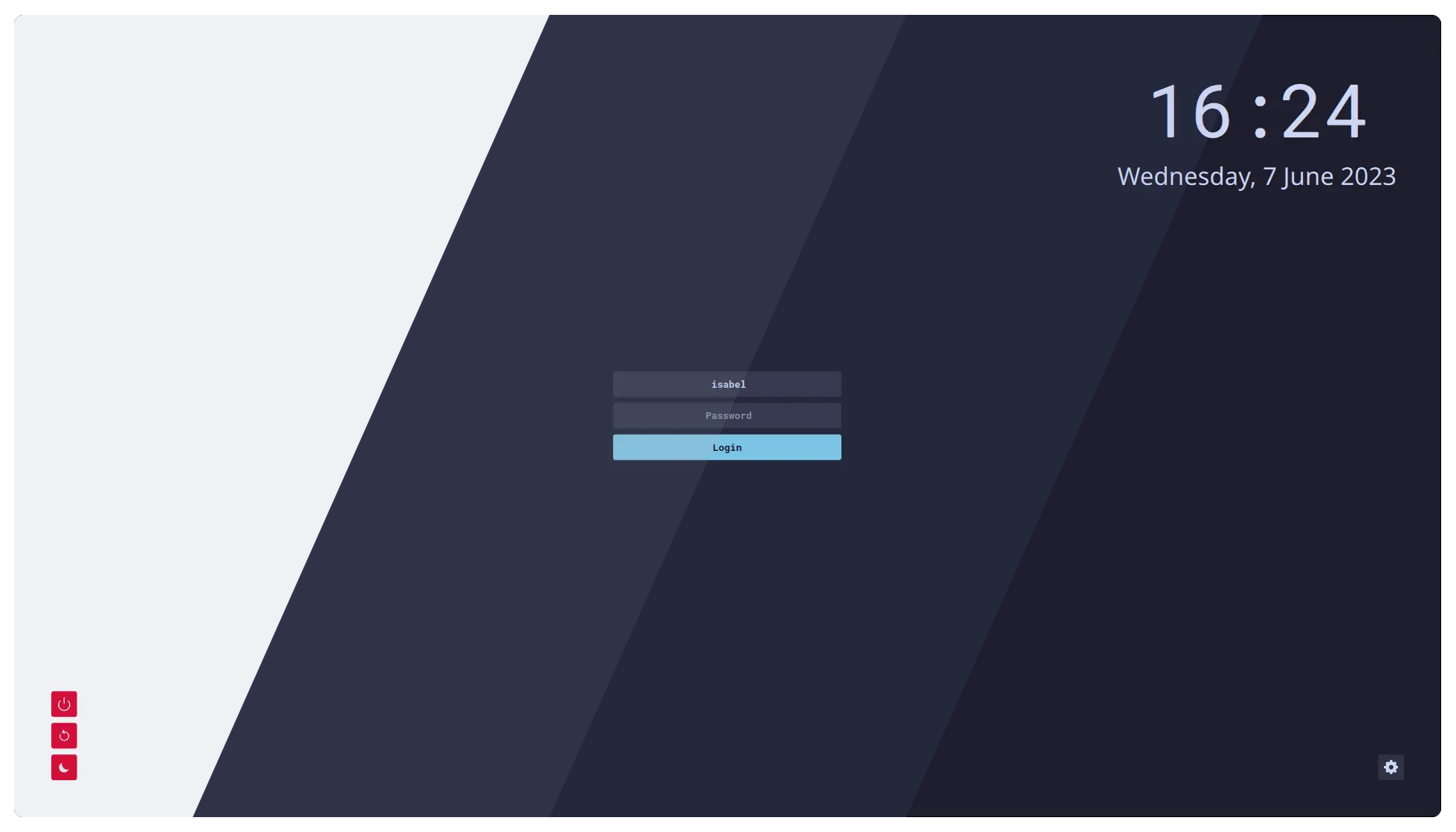
Previews
🌻 Latte
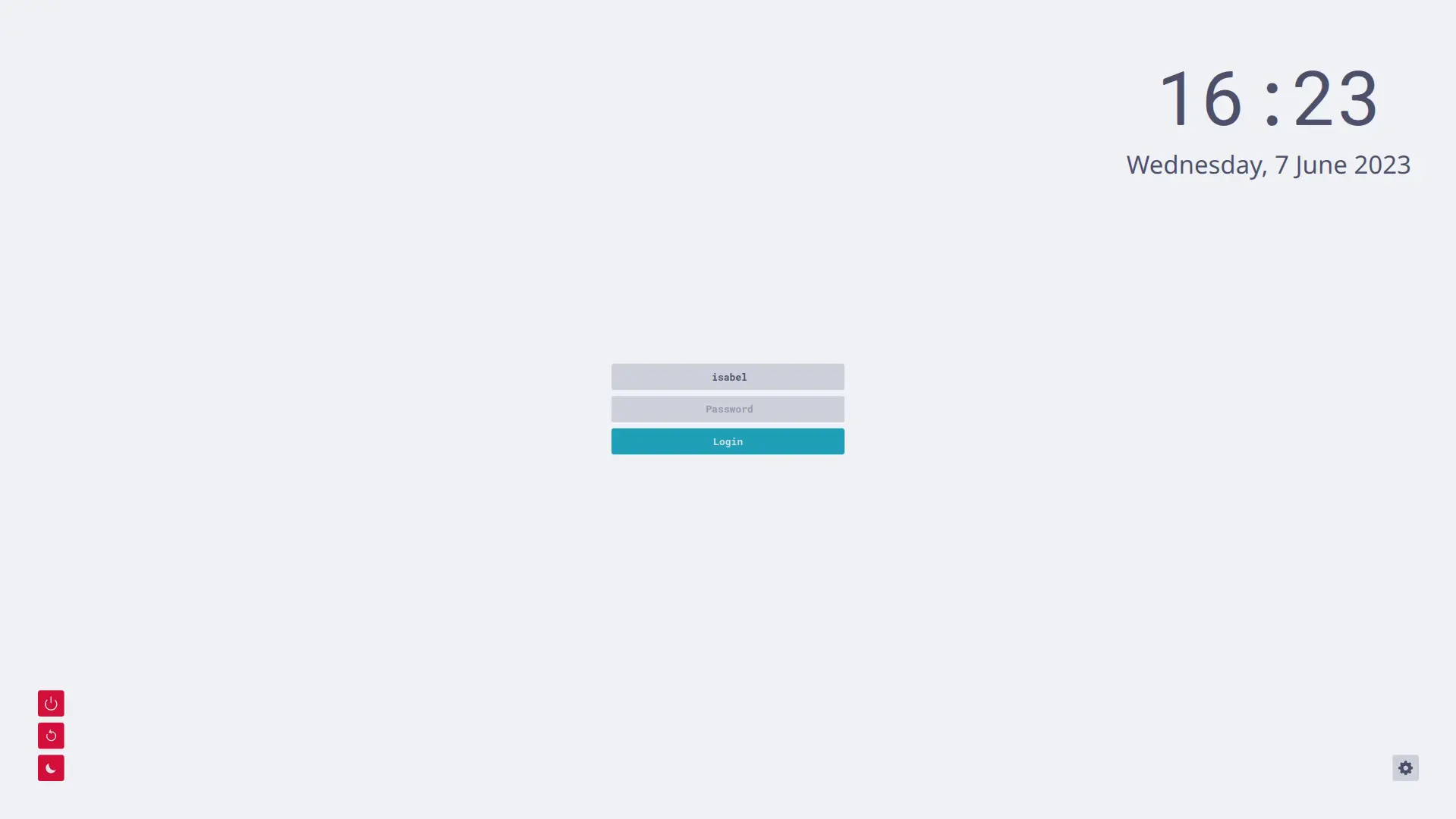
🪴 Frappé
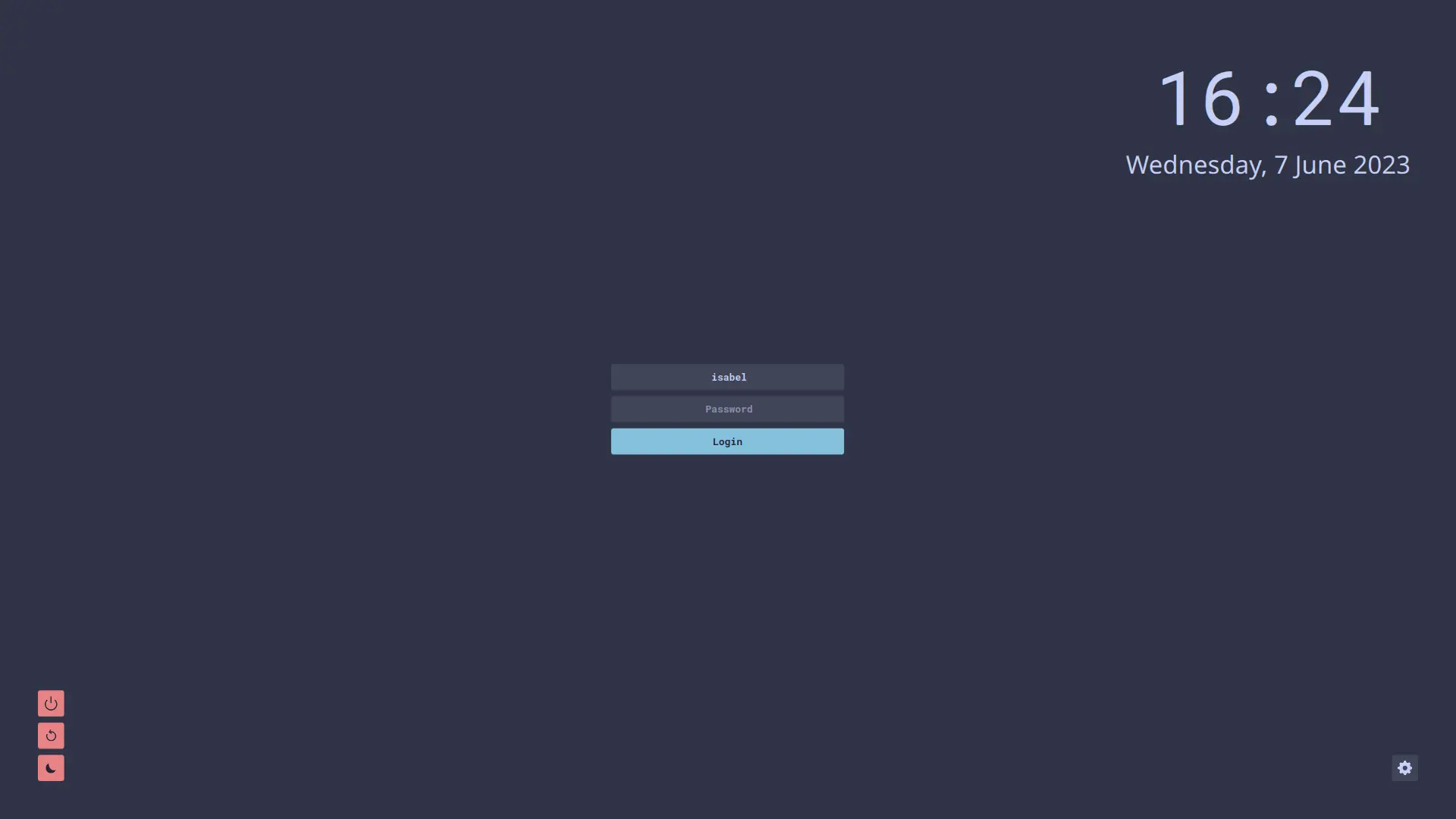
🌺 Macchiato
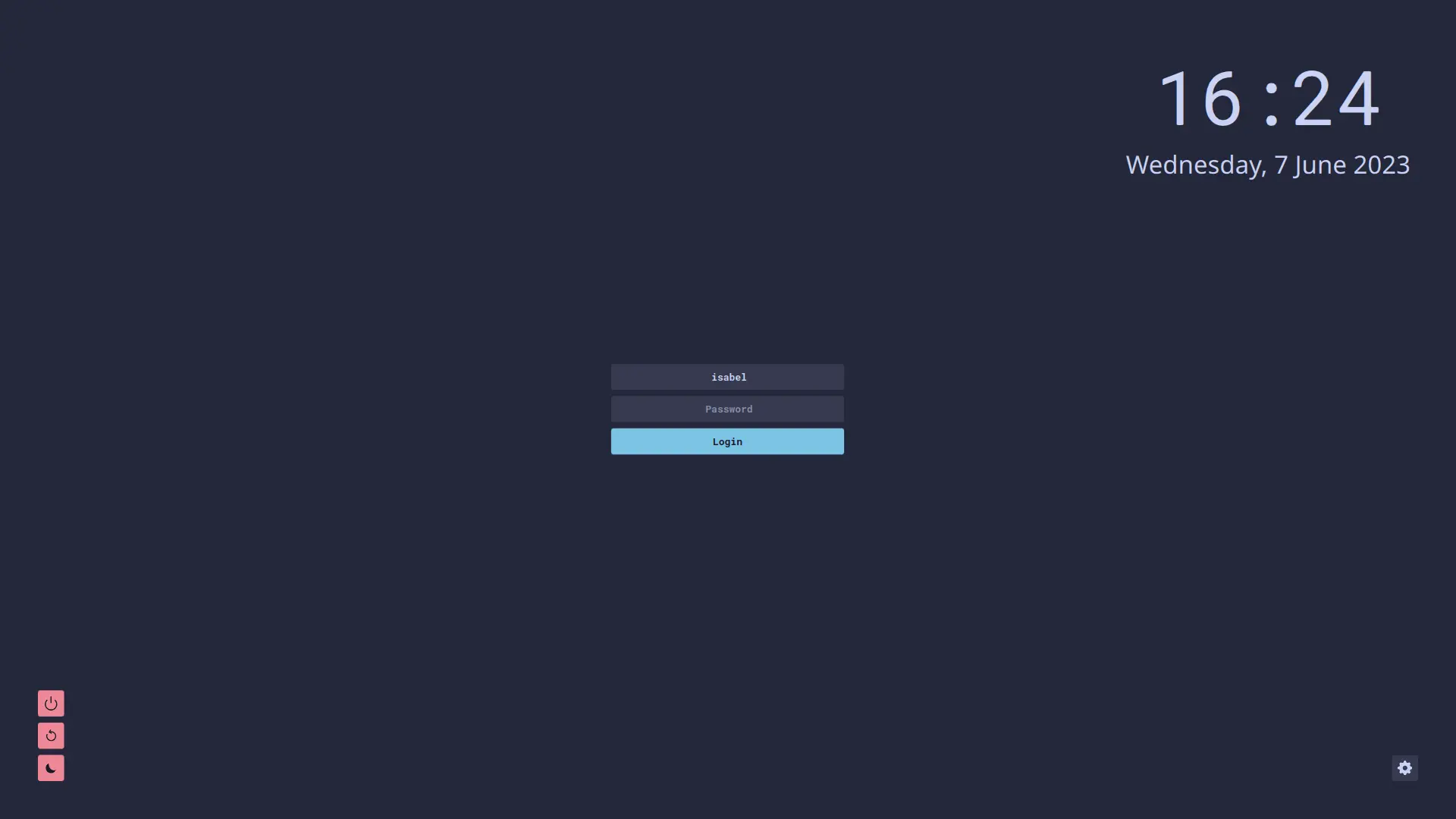
🌿 Mocha
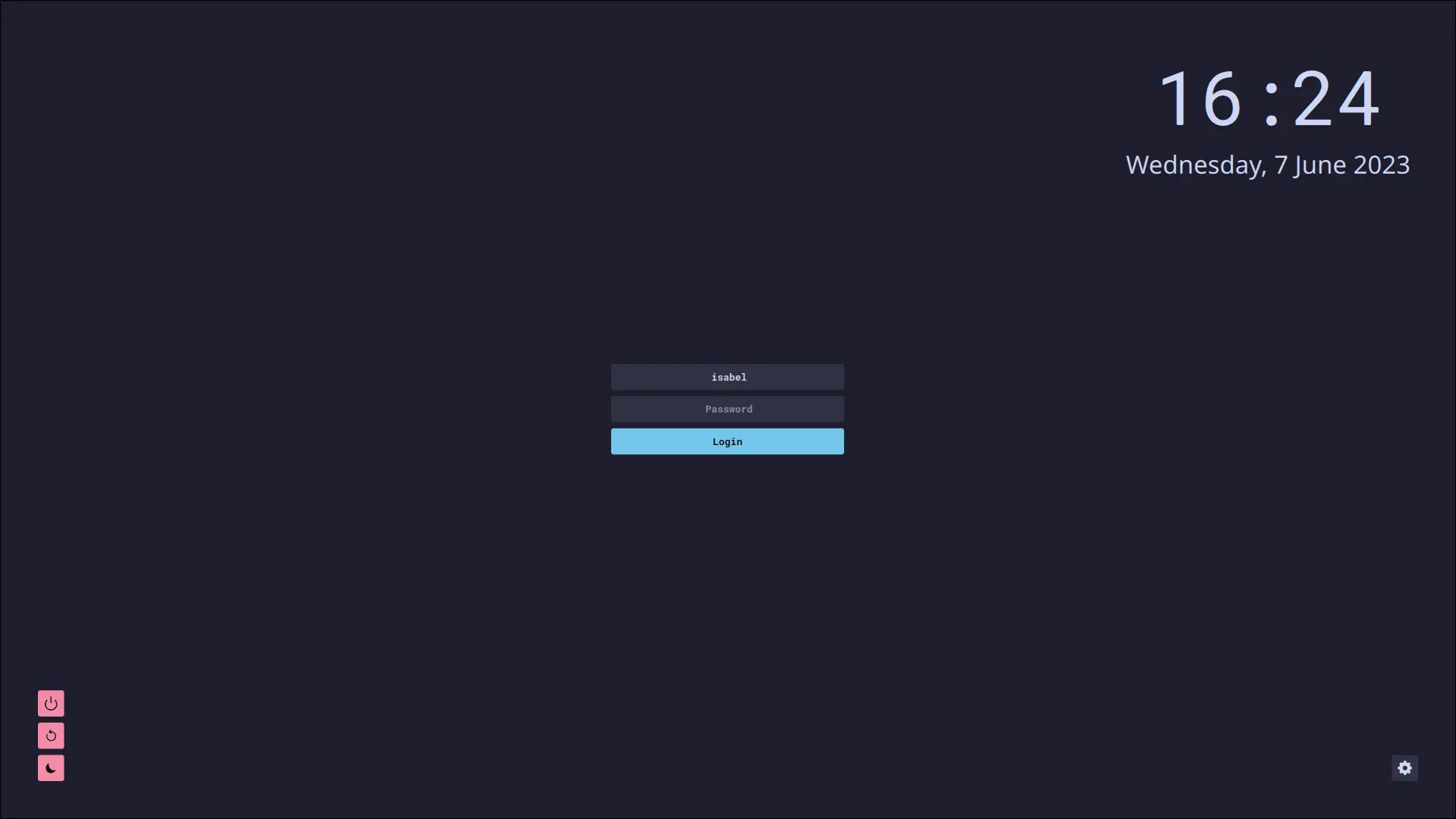
Usage
Ensure you have installed the dependencies for your operating system.
Download your chosen flavour + accent zip file from the latest GitHub release.
Unzip the file and move the resulting directory to
/usr/share/sddm/themes/. E.g. to copycatppuccin-mocha-mauve:sudo mv -v catppuccin-mocha-mauve /usr/share/sddm/themesEdit the
/etc/sddm.conffile and change the theme tocatppuccin-<flavour>-<accent>. For example,catppuccin-mocha-mauve.If you don't have this file, create the
/etc/sddm.conffile and add the following lines:[Theme] Current=catppuccin-mocha-mauveUnfortunately, the theme does not work properly if SDDM is run on X11 and not Wayland - follow the instructions here here if there are issues.
Dependencies
Arch Based OS
pacman -Syu qt6-svg qt6-declarative qt5-quickcontrols2
Debian Based OS
apt install --no-install-recommends qml-module-qtquick-layouts qml-module-qtquick-controls2 qml-module-qtquick-window2 libqt6svg6
RPM Based OS
dnf install qt6-qtquickcontrols2 qt6-qtsvg
Solus OS
eopkg install qt6-quickcontrols2 qt6-svg
NixOS
This theme is available in nixpkgs `catppuccin-sddm`.
Add the package to systemPackages, you can customize the theme by overriding the attributes:
environment.systemPackages = [(
  pkgs.catppuccin-sddm.override {
    flavor = "mocha";
    accent = "mauve";
    font  = "Noto Sans";
    fontSize = "9";
    background = "${./wallpaper.png}";
    loginBackground = true;
  }
)];
Then set it as the theme in the sddm configuration, change the suffix to the flavor and accent you set in the package override:
displayManager.sddm = {
  enable = true;
  theme = "catppuccin-mocha-mauve";
  package = pkgs.kdePackages.sddm;
};
Configuration
Font: The chosen fontFontSize: The text sizeClockEnabled: Whether the clock is on or off, this should be set to eithertrueorfalseCustomBackground: When this istrueit will read fromBackgroundto render the custom background image, this should be set to eithertrueorfalseBackground: This is the location of the background image, it is recomended to use the providedbackgrounds/directory to store the imagesLoginBackground: This is a extra background around the login panel, this should be set to eithertrueorfalseUserIcon: When this is set totruethe user icon will be displayed, this should be set to eithertrueorfalse
💝 Thanks to

Copyright © 2021-present Catppuccin Org